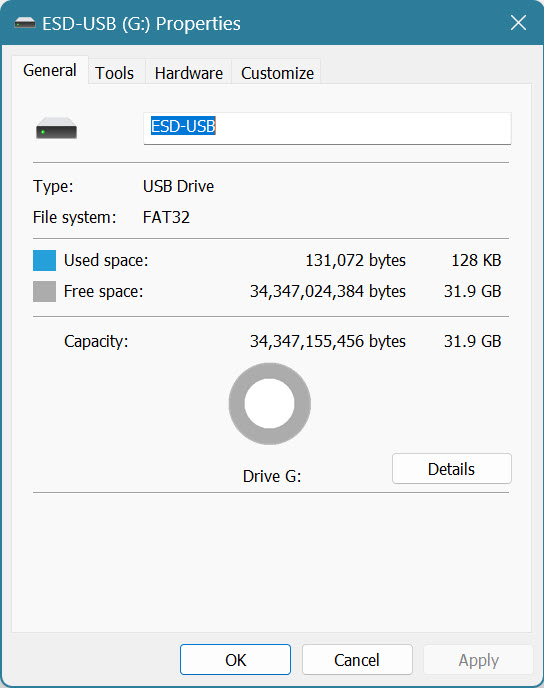
I purchased the flash drive from Best Buy but didn’t open it until recently. I show only 31.9 GB available. There are no files copied to the flash drive. What can I do to correct this? Thanks.
Hi @RobertS
Have you opened a Support Case? If not opened, for more information, please contact the SD Technical Support team for best assistance and troubleshooting:
https://kb.sandisk.com/app/ask
Return it to Best Buy. They are a good store. And will have your purchase in their computers.
BTW RobertS, did you format the drive? Your image shows it formatted as FAT32 and FAT32 only supports sizes up to 32GB. For large USB drives they need to be formatted as exFAT which is what SanDisk creates them as.
What Windows version is your computer running? The built-in Disk Management tool limits FAT32 partition creation to 32GB. In fact, the FAT32 file system technically supports up to 2TB partition sizes, but you need third-party tools to create a FAT32 partition larger than 32 GB (though Windows 11 is changing this). Other file systems, such as NTFS or exFAT, support larger partition sizes.
Right-click “This PC” (or “Computer”) > select “Manage” > choose “Disk Management” to open Disk Management and check if your USB drive has a single FAT32 partition, showing as ESD-USB (G:).
If so, try one of these 3 ways to use the full storage space of the USB drive:
Way 1: Format G drive & Extend
Format the drive to exFAT or NTFS (back up all important files first!), then right-click the G: drive >select “Extend Volume…” and follow the prompts.
Way 2: Create a New Volume
Right-click the gray, unallocated space behind the G: drive in Disk Management, select “New Simple Volume,” and follow the wizard to assign size, drive letter, and format it (usually NTFS) as a new drive. (Related guide: Hard Drive Not Showing Full Capacity? Try These Solutions!)
Way 3: Delete G: Drive then Reformat
Back up all data from the G: drive, right-click the G: drive in Disk Management, and select “Delete Volume.” The entire USB drive becomes unallocated space. Then, right-click the unallocated space, select “New Simple Volume,” and follow the wizard to format your USB drive to NTFS or exFAT." (Related guide: Hard Drive Not Showing Full Capacity? Try These Solutions! )
