Hey guys, I partitioned my 128 gb SanDisk SD card, but when I tried to relocate all of the data as a whole again, I deleted te partions, but before I could relocate them, the SD card card desconnected. Now everytime I put my SD card on my PC, It says “insert a disk in the USB drive”. And the SD card doesn’t show up in disc manager anymore. I don’t know what to do.
Hi @Lucas2,
Have you opened a Support Case? If not opened, for more information, please contact the SD Technical Support team for best assistance and troubleshooting:
https://kb.sandisk.com/app/ask
This typically means that while your system can detect that something is connected via USB, it no longer recognizes the SD card as a readable storage device. This often happens when the partition table or file system is severely corrupted, or if the SD card’s controller has failed.
First, try inserting the card into a different card reader or computer. Sometimes the issue lies with the reader or USB port rather than the card itself.
If the same problem occurs across devices, open the Command Prompt, type diskpart, and then list disk. See if your SD card shows up there by its size. If it doesn’t appear at all, it may be a hardware-level failure — software won’t be able to detect or recover it. But if it does appear, even without a drive letter, that’s a good sign: the card is still detectable on some level. For more solutions, you can check out this blog post.
The “Insert a disk in the USB drive” message means your system detects the reader but not the card itself, and the fact that it no longer appears in Disk Management confirms this.
To fix the issue, you try to format or partition the USB but both options typically fail to work. Check out this article for better answers: 10 Ways to Fix USB Drive Error “Please insert disk into removable disk”
Open Disk Management and find the USB stick, then create a partition
then create a file system, exFAT is standard above 32GB capacity
Has your PC reported an error message like this? Give the following solutions a try:
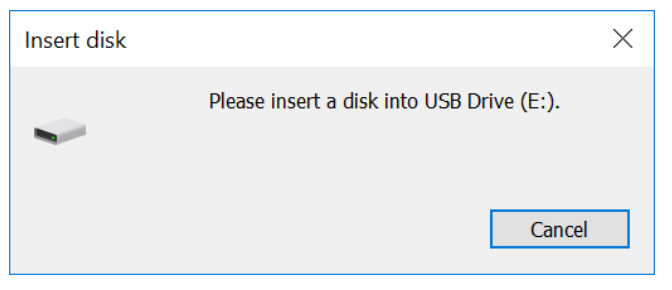
Solution 1. Assign a new drive letter for your SD card in Disk Management
Solution 2. Update or reinstall the USB driver in Device Manager
Solution 3. Run the Diskpart command to clean the SD card and then reformat it
Solution 4. Use the Windows built-in tool called Hardware and Devices Troubleshooter to fix the issue.
[ Related how-to guide: How to Solve Please Insert a Disk into USB Drive Error ]
This likely happened because the SD card disconnected while the partition table was being modified.
Try these steps:
-
Use a different card reader and USB port.
-
Test the SD card on another PC, Mac, camera, or phone.
-
Open Disk Management and click Action → Rescan Disks.
-
Open Command Prompt (Admin), run:
diskpart
list disk
If it appears there, Windows still detects the card.
If the SD card doesn’t show up in Disk Management, DiskPart, or other devices, the controller is probably damaged. In that case, it’s a hardware failure and cannot be fixed by software. Read more detailed tutorials here.
Use DISKPART and clean the card fresh and repartition it fresh
