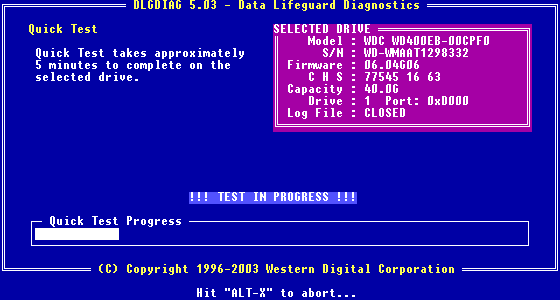
I am running Data Lifeguard Diagnostic for DOS provided by WD on a USB drive, and I chose the Extended Test (which automatically also runs the Quick Test first). It’s been running the Quick Test for about 10 minutes so far; the bottom of the page says “Hit ‘Alt-X’ to abort” and yet there is no progress bar or anything under the instructions, like there is in this [Deleted]
Does this mean the software can’t even run on my computer? Is my hard drive completely fried then? Please advise ASAP before my drive completely dies, thanks in advance!
Hello,
Try downloading the version from the following link
http://support.wdc.com/product/download.asp?groupid=613&sid=2&lang=en
Instructions
- Download the dlgdiag_5_20.zip.
- Extract the dlgdiag5.exe file and copy to a Memory stick .
- Boot from the memory stick. Make sure that your boot order in your Bios is set to boot from the USB drive first.
- At DOS prompt type dlgdiag5.exe to run the program.
- You will see the following options:
- SELECT DRIVE - Always choose this option first, as it determines which drive you will be working on.
- QUICK TEST - This option tests your drive quickly for any major physical problems. (Please note: Although this option is safe and does not alter the data on your hard drive, Western Digital recommends that you have a current backup of your data).
- EXTENDED TEST - This option checks your drive thoroughly and it can repair any correctable errors. (Please note: Although this option is safe and does not alter the data on your hard drive, some data loss may occur, depending on the errors found and the errors corrected. Western Digital recommends that you have a current backup of your data).
- WRITE ZEROS TO DRIVE - The Write Zeros option, wipes all data off your drive. This option used when your data is no longer usable or recoverable. If you no longer need any data from your drive and would like to start over, run this option to set your drive to an as new condition. NOTE: Please make sure that you have selected the correct drive to perform this function on as once ran, no data will be recoverable.
- VIEW TEST RESULTS - You can see the results of the test you just performed
- PRINT TEST RESULTS - Test results can be printed with this option. USB printers are not supported
- LOG FILE OPEN/CLOSE - You can access the log file which is generated automatically
- ENTER AND PRINT RMA INFORMATION - Information pertaining to each drive tested can be customized and printed with this option.
- HELP - Brief descriptions of each option in addition to explanations of error codes are available in this option.
- QUIT - Reboot your system once you have completed the selected tasks
- Select the task you wish to perform.
Yes that is exactly what I did. The screenshot I linked is not actually my own; I just found it online, because it shows the progress bar that I SHOULD see, but I don’t. I am already using version 5.20 but no progress bar appears when I run a test.